Switch the view with the buttons in the menu.
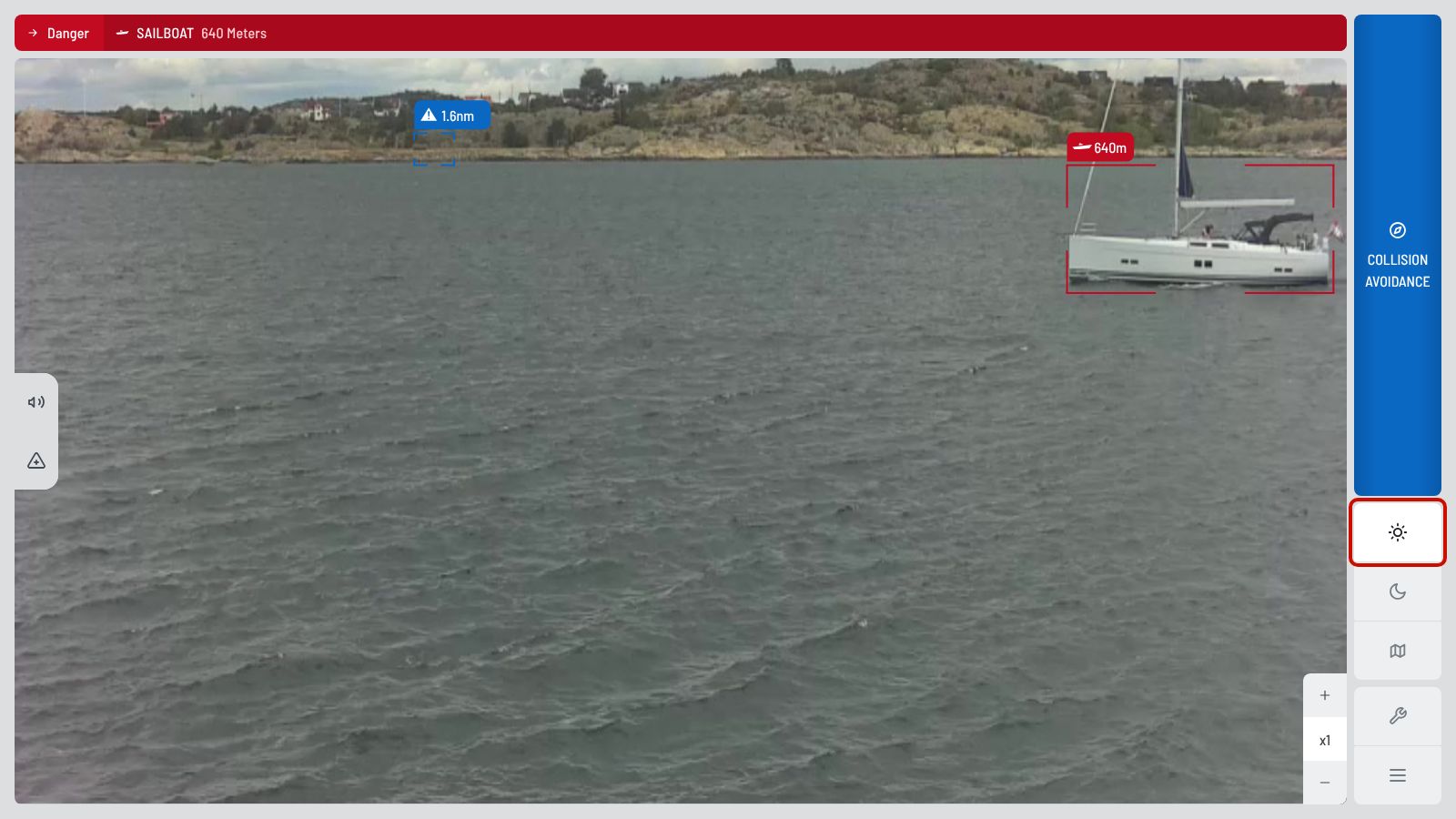
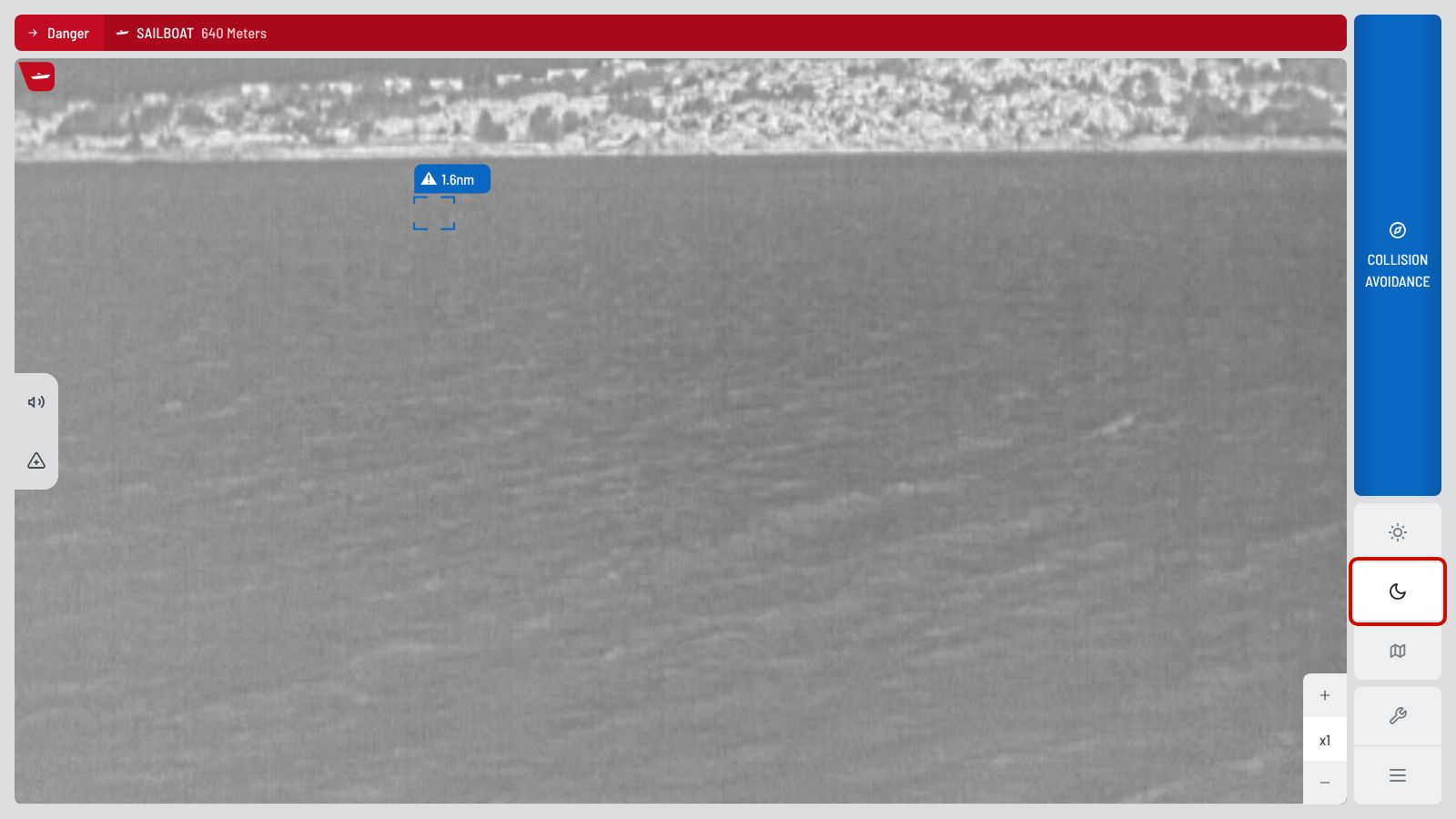
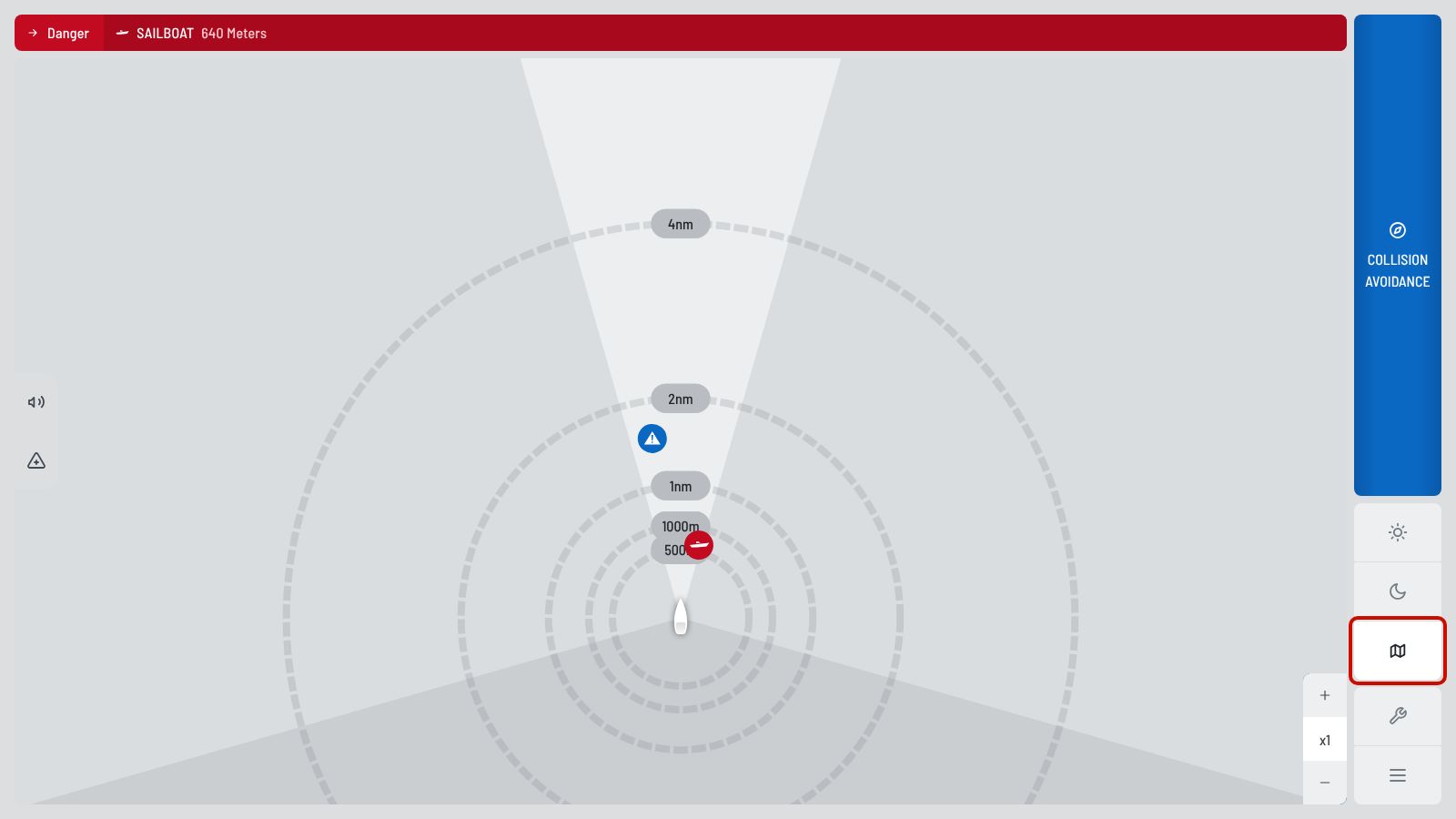
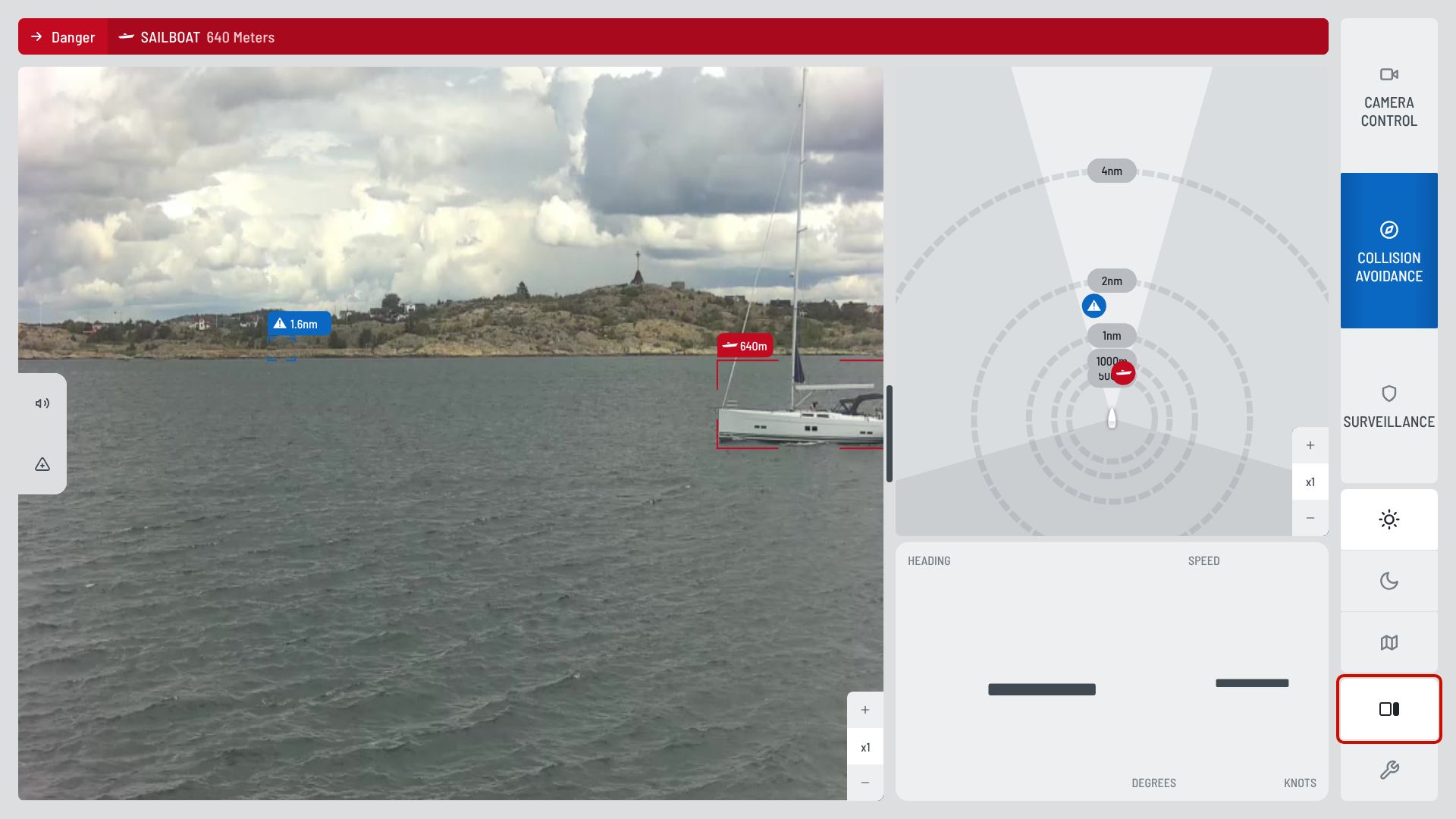
Zoom: wide and narrow camera
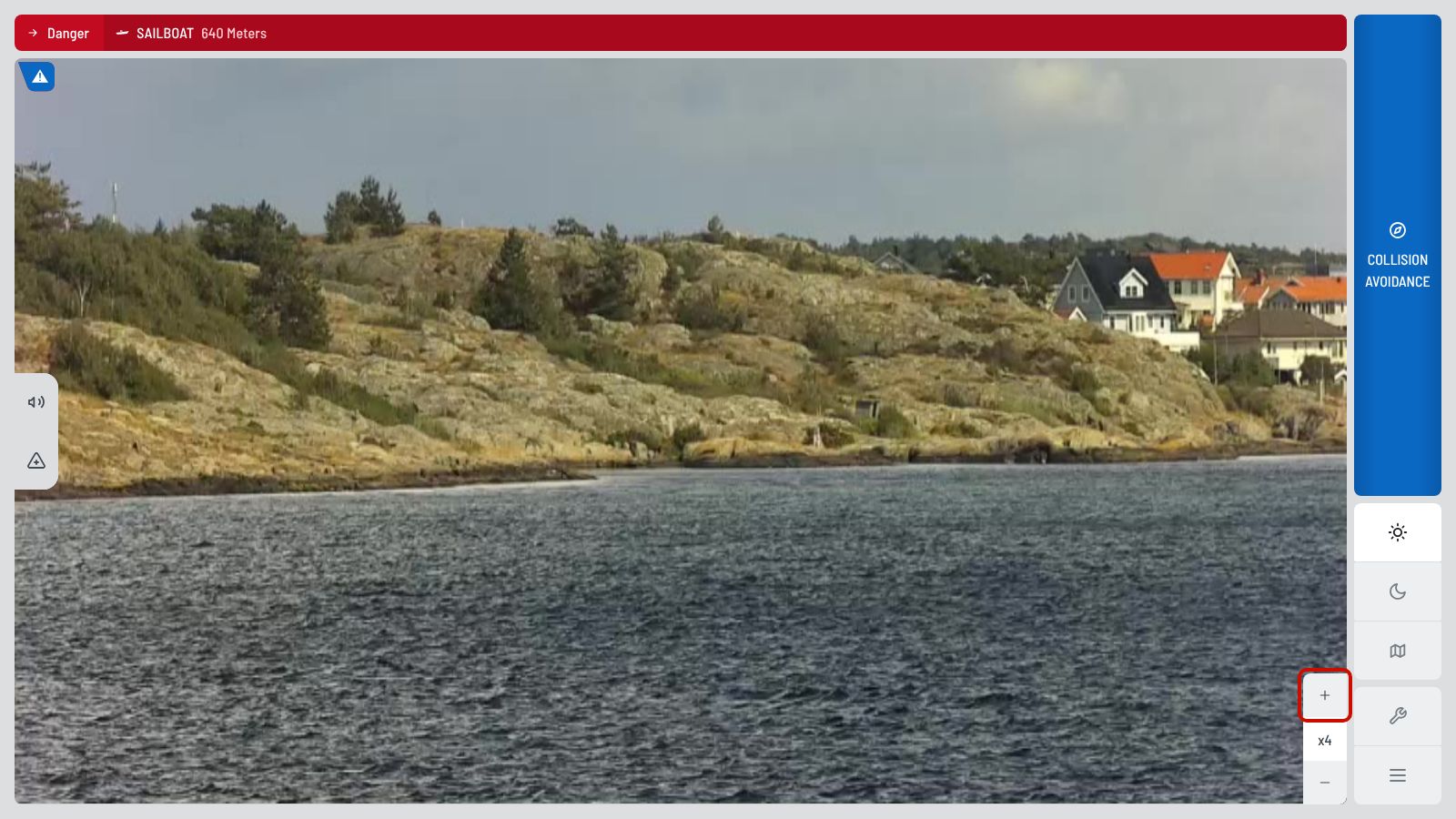
Select + and − at the bottom right. The number shows the zoom, for example x1. When you zoom in, Sentry changes from the wide to the narrow camera. You see far objects in more detail.
Steer the camera (Camera Control)
Choose Camera Control. Then select ✥ at the bottom left. The pan/tilt pad opens.
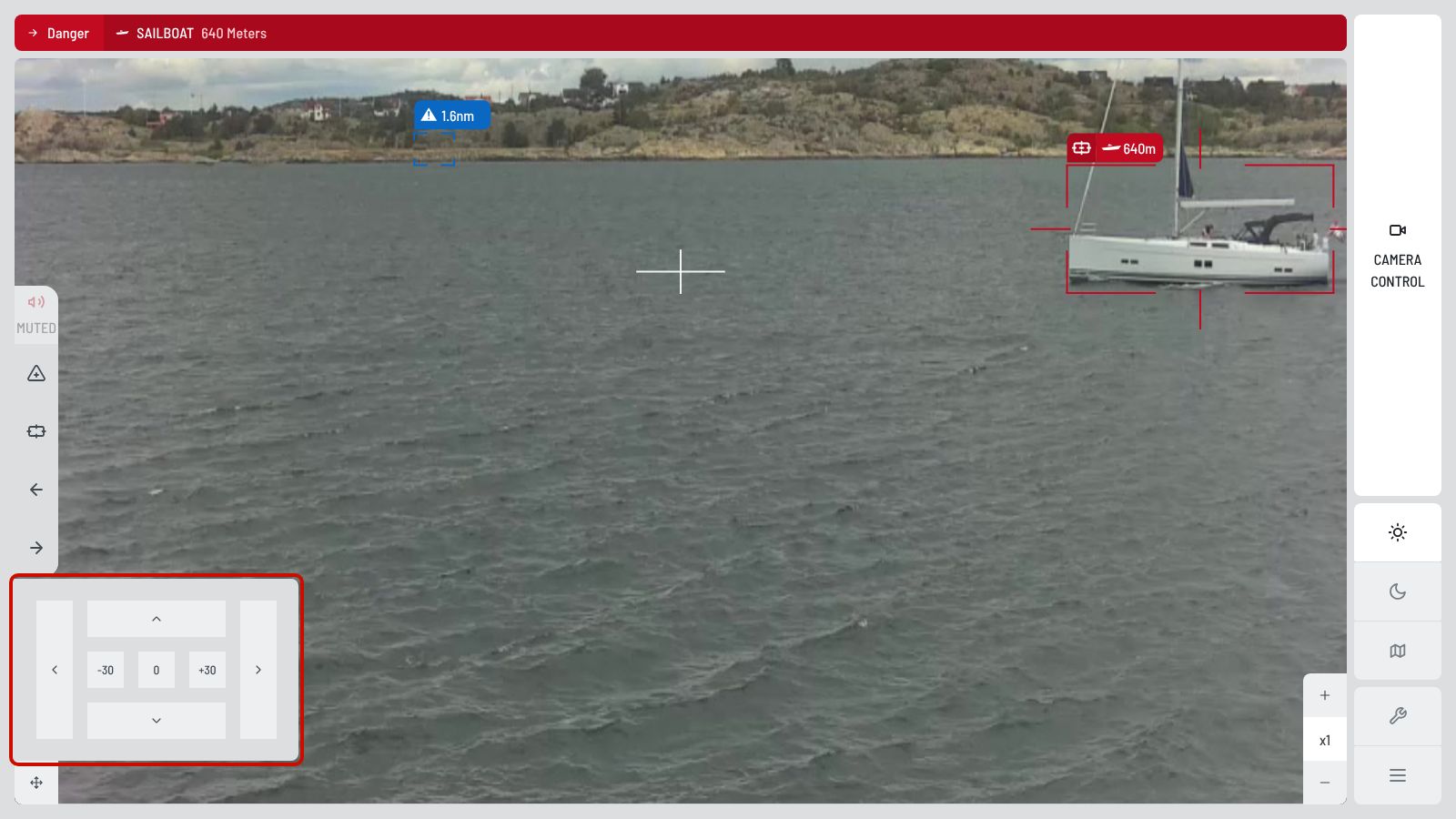
- ‹ ›Pan: hold the arrow. The camera turns until you release it.
- ˄ ˅Tilt: hold the arrow. Up to 20° up or down.
- ☝Drag: drag in the image to move the camera.
- ±30Step: turn the camera 30° to port or starboard. 0 brings it back to the bow.
Follow a target automatically, or use the joystick: see Track and joystick.
In Camera Control you can let Sentry follow one detection. The camera turns with it and keeps it in the centre.
Track a detection
- Choose Camera Control.
- Turn the camera so the detection is near the cross in the centre. A track icon appears on its label.
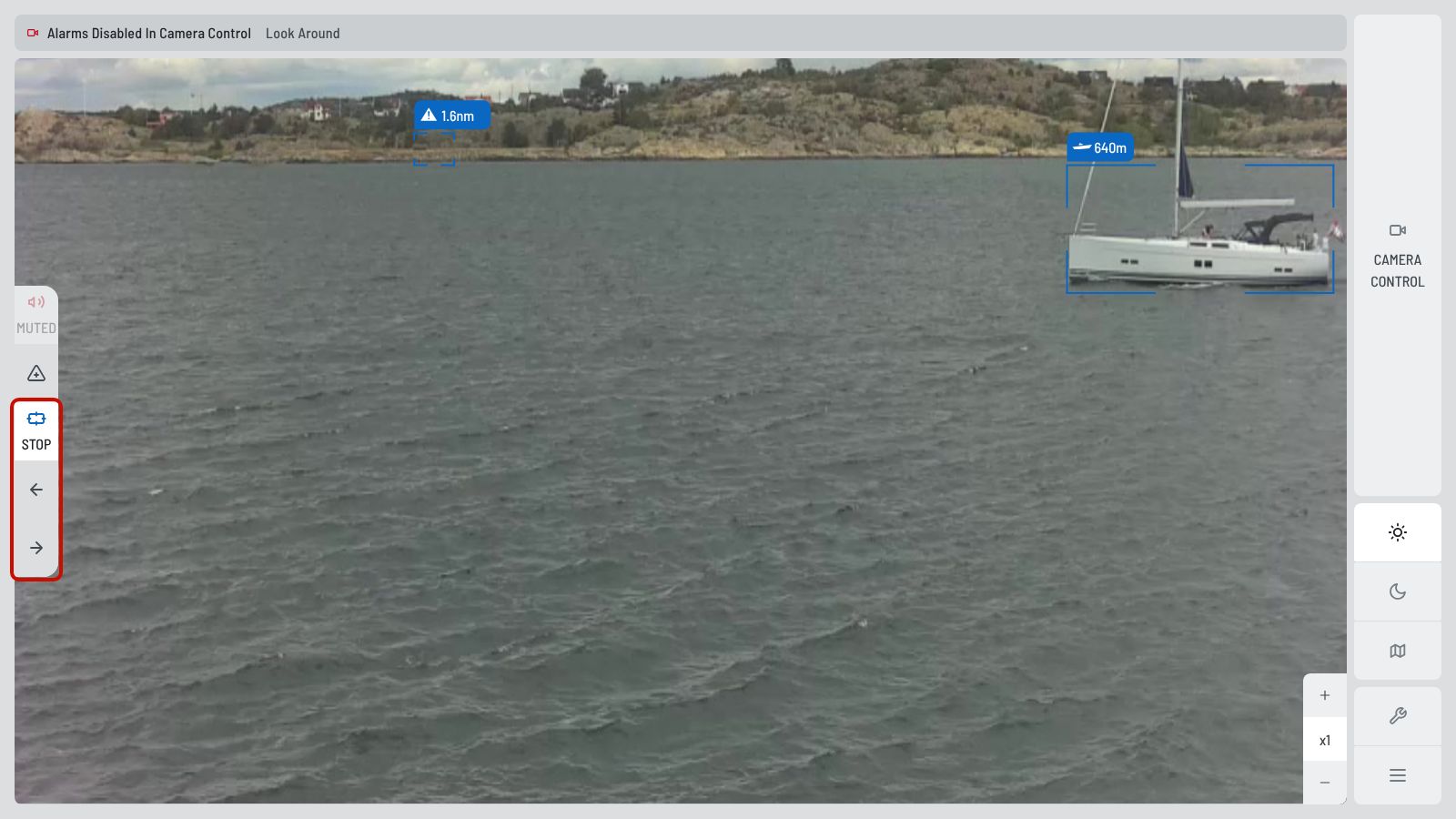
- Select ⌖ Track on the left (or in the menu). The button now shows STOP.
- Switch to another detection with ← or →. The app shows Tracking New Detection.
- Select STOP to end tracking. You are back in Camera Control.
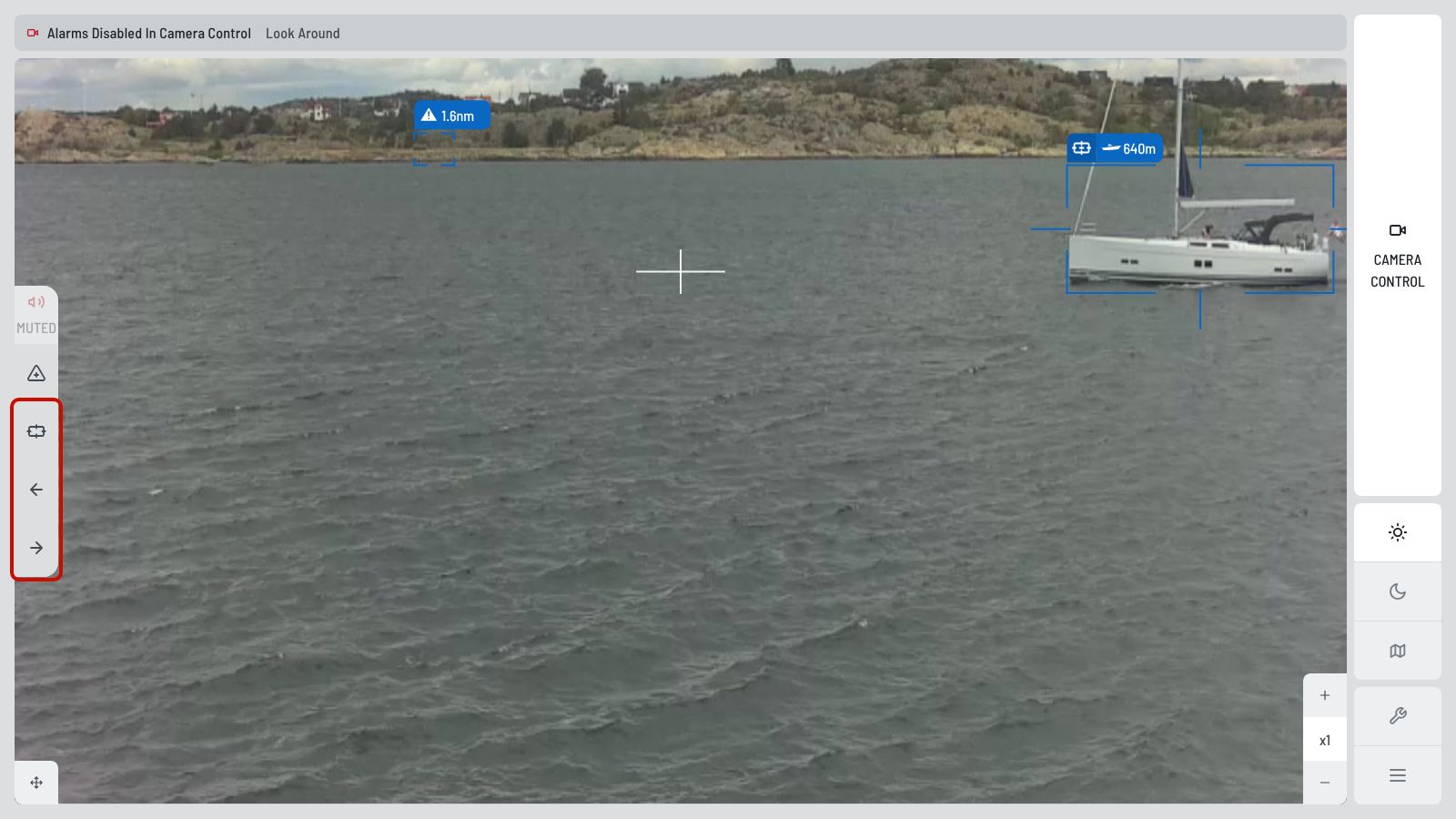
Not tracking? ← and → turn the camera to the next detection on that side. No Available Detection means there is none.
Joystick
The optional joystick (F06130, in the professional installation kit) controls Sentry without the screen.
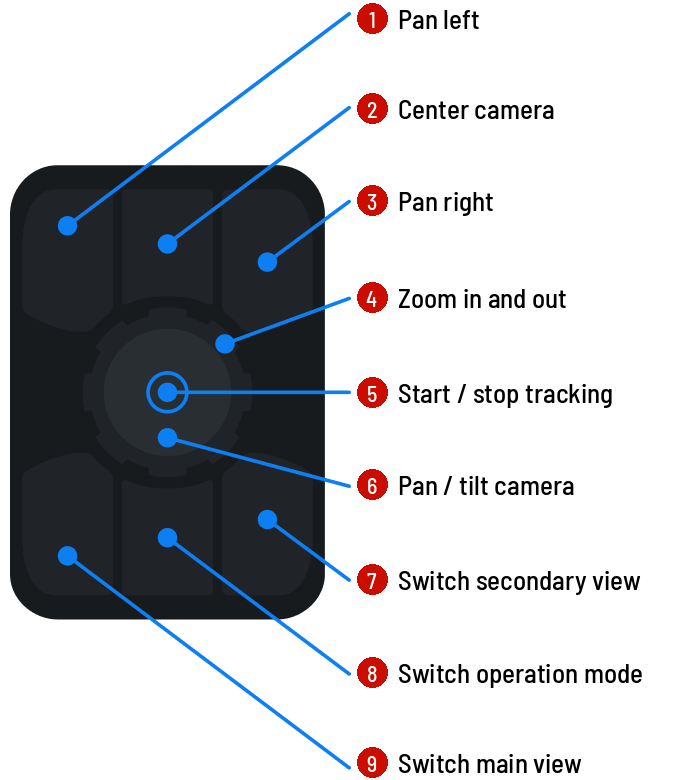
- Connect: Settings › Personalization › Joystick Controls. Switch on Connect this device to the joystick.
- Brightness: set the backlight of the joystick and its buttons in the same place.
- Only one device can use the joystick. When another app takes it, you see Joystick disconnected.
Sentry missed an object, or warned about nothing? Record a short clip. Your clips train the AI. They help Sentry see better on every boat, and make the sea safer for everyone.
- Select AI Feedback. Choose what you see. Sentry saves a short clip.
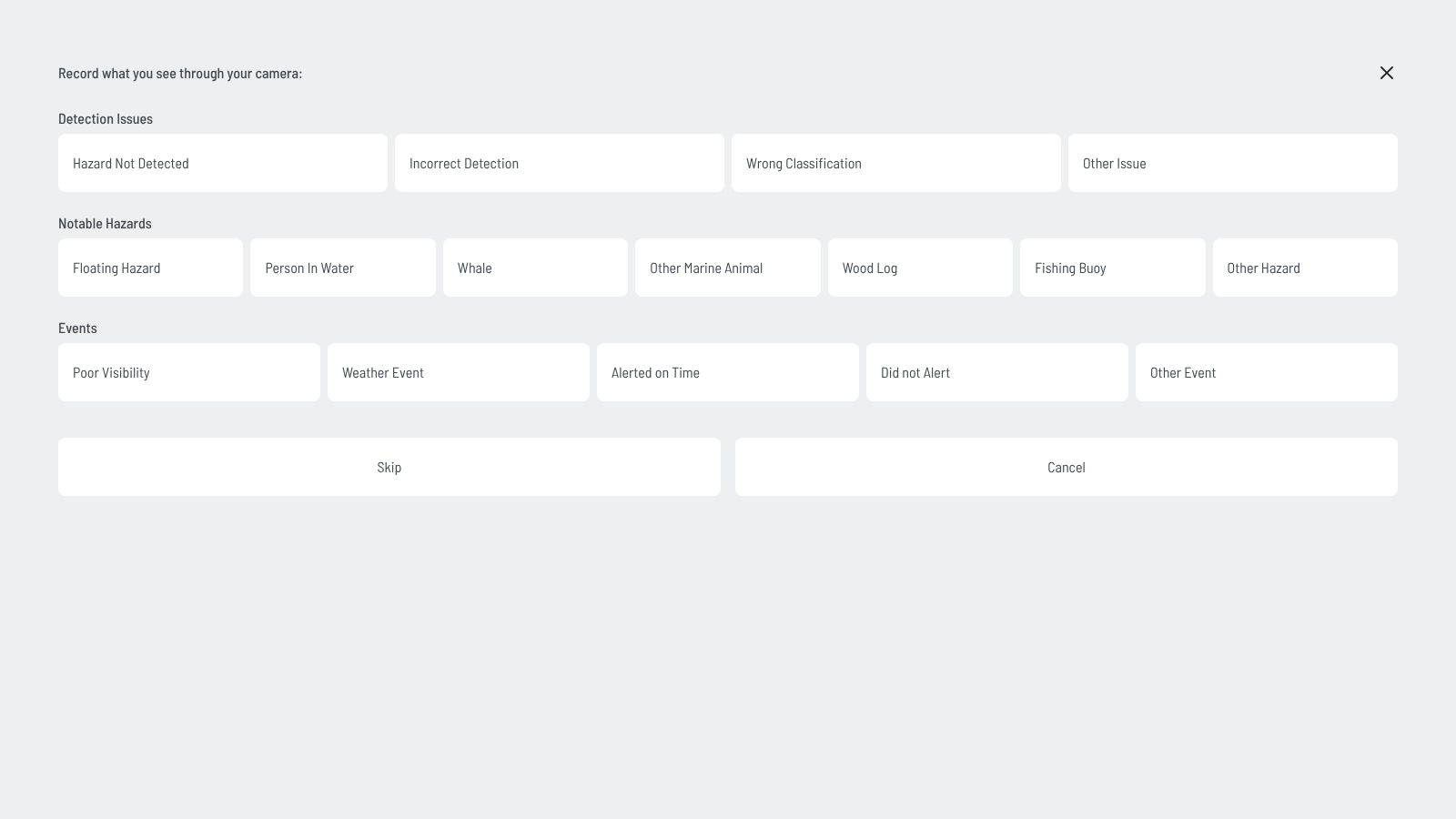
Choose the type of event. - Download the clips from Sentry: Settings › System › Download Recorded Data.
- Contact
feedback@sea.aito share the clips. The files are too large for e-mail. SEA.AI tells you how to send them. - Delete the clips on Sentry. This frees the storage.