Select to open the settings.
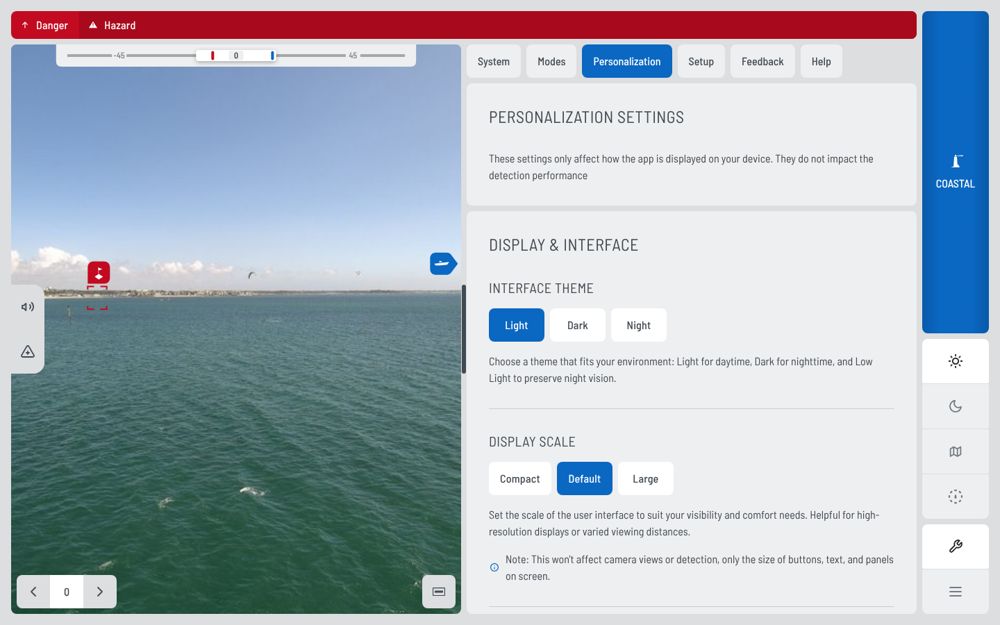
| Tab | What you find there |
|---|---|
| System | Model, software version, update, storage, recorded data |
| Modes | Docked, Coastal, Offshore explained |
| Personalization | Theme (Light, Dark, Night), display scale, thermal polarity and contrast, sounds, distance unit |
| Setup | NMEA, camera alignment, mounting height, distance to bow, installer login |
| Feedback | How to send recordings, data sharing |
| Help | Contact SEA.AI service |
| Advanced | Stream settings. Appears when you switch it on in Personalization. |
TipThermal contrast: choose the setting that gives the best contrast in the thermal image. Not sure? Keep Default.
Advanced stream settings
Watchkeeper sends the camera images to your displays as streams. There are three types of stream. Each display uses one of them. The default settings work for most boats.
NoteThese settings change only how the video looks on your display. They do not change the detections or the alarms.
Change the settings only when a display shows no video, or when the video stutters or lags. A slow network or an old display is the usual cause.
Change the stream settings
- Open Settings › Personalization. Switch on Enable Advanced Stream Settings. The Advanced tab appears.
- Open Advanced. Find the stream that your display uses.
- Lower one value one step. Check the video on the display.
- Not better? Do step 3 again with the next value.
- Still no improvement? Select Reset Settings to Default. Contact
service@sea.ai.
What each stream setting does
| Stream | What it is | Used by |
|---|---|---|
| Video Stream | Continuous video in the app. The standard stream. | SEA.AI app on phones, tablets, PCs and most MFDs |
| Image Stream | Still images at set intervals. Needs less bandwidth, but is less smooth. | Devices without video support, for example Garmin MFDs |
| RTSP | Watchkeeper works as an IP camera. Low delay. | Third-party systems, video recorders, network camera pages of MFDs |
NoteTrade-off. Each setting is a trade-off between image quality and smooth video. Higher values give a sharper image, but need more bandwidth and more processing power on the display. The best values depend on your boat network and your display, for example the MFD model. Find the highest values that still give smooth video.
| Setting | What it does | Lower it when |
|---|---|---|
| Resolution | Size of the image. High resolution does not work on chartplotters. | The display shows no video. |
| Framerate (FPS) | Images per second. Higher is smoother. | The video stutters. |
| Bitrate (Mbps) | Data per second. Higher gives more detail, but needs more bandwidth. | The video lags or freezes. |
| Image Quality | Image Stream only. Higher gives more detail, but needs more bandwidth. | Images arrive slowly. |
Experts also find the encoder, I-frame interval, RTSP transport and MTU here. Questions about these settings? Contact us at service@sea.ai.