Switch on Watchkeeper
Switch on the circuit breaker for Watchkeeper. The unit needs up to 3 minutes to start.
Make sure your phone, tablet, PC or MFD is on the same boat network as Watchkeeper.
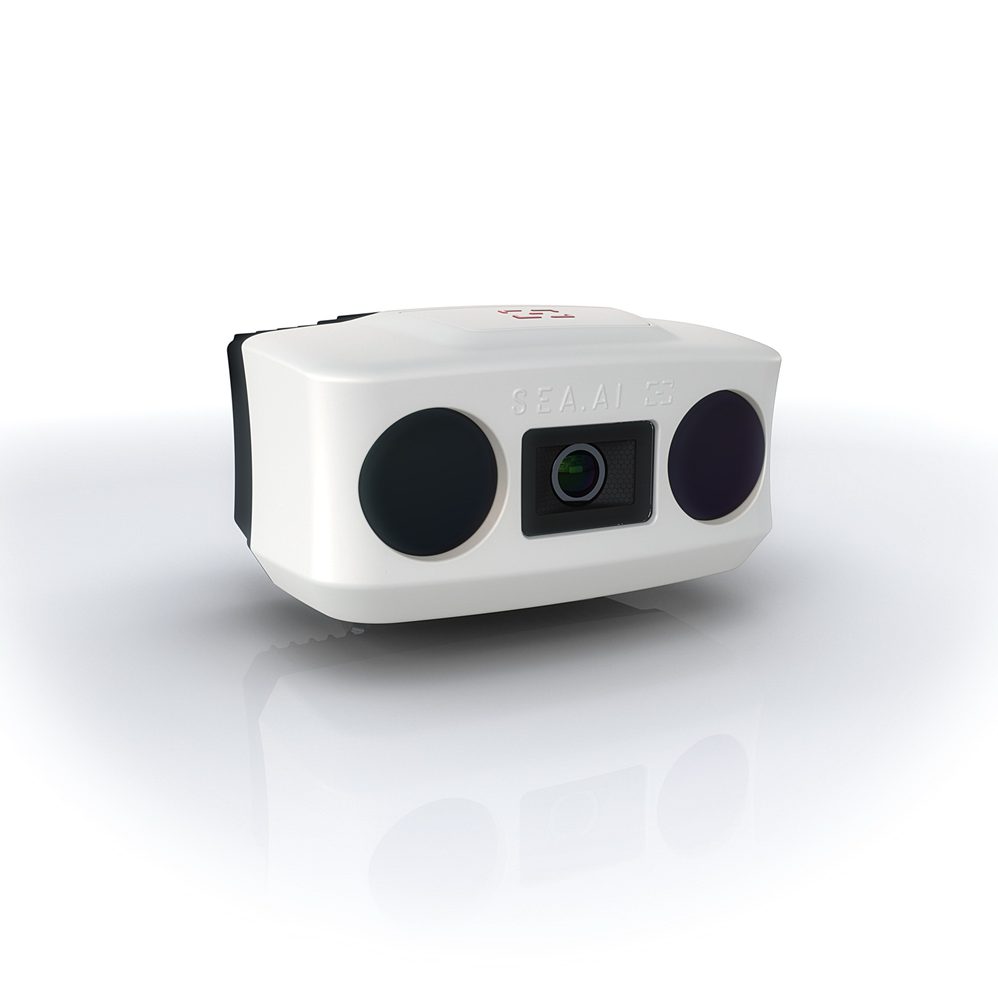
Watchkeeper sees what radar and AIS often miss: containers, buoys, kayaks and people in the water. It marks each object on screen. It sounds an alarm when an object becomes a risk.
Go through the 9 steps with Next. The app shows what you see on your device.
Switch on the circuit breaker for Watchkeeper. The unit needs up to 3 minutes to start.
Make sure your phone, tablet, PC or MFD is on the same boat network as Watchkeeper.
The first screen is Register to SEA.AI. Scan the QR code, or select Go To Registration.
Registration starts your 2-year warranty and gives you software updates. You get a Product Key by e-mail.
Register at connect.sea.aiOn a PC or tablet. Scan the QR code with your phone, or select Go To Registration.
Select Insert Product Key. Type the 6-character key from the e-mail. Select Validate.
Read the Terms of Use – SEA.AI Connect. Select Agree & Continue. The app asks only once.
You see the live image with the detections. Watchkeeper starts in Docked mode. A message tells you that alarms are off.
Tap the mode button at the bottom. Select Coastal near the coast, or Offshore on open sea. Alarms are now on.
On a PC, tablet or MFD: the mode button is on the right.
When an object becomes dangerous, its box turns red and the alarm sounds. The bar at the top names the type and the direction.
Look in the direction of the alarm. Keep a proper lookout.
Tap the speaker to mute the alarm sound. Tap it again to switch the sound back on. The visual alarm stays on.
Next: try every button yourself in Try the app, or read about modes and alarms.
On a PC, tablet or MFD: Mute is on the left.
Step 1 of 9